How to get your mixes from your DAW onto your iPhone
By Ryan Whitten · Updated October 2, 2026
The fastest way to get a mix from your DAW onto your iPhone is to bounce into a folder that uploads itself, so the mix is on your phone before you've left the room. Every other way works, but each one adds steps and none of them was built to play a project you're still making: the songs in order, the current version of each, and somewhere to put your notes.
Here's how the usual routes compare, and where each one falls down.
Apple Music on your Mac
Logic can add a bounce straight to your Apple Music library, and any DAW's bounce can be dragged in. There are two ways to get it from there to your phone.
- Sync through Finder: free, but the phone has to be connected. No subscription needed. Plug the phone in with a cable, select it in Finder, and sync your music. Wi-Fi sync saves the cable later, but it's set up over a cable first, needs the Mac and phone on the same network, and is slower. When the phone doesn't show up in Finder, you're back to the cable, every new mix.
- Sync Library: no cable, but it needs a subscription. Apple Music or iTunes Match uploads your own files to your cloud library so they appear on the phone. They have to finish uploading first, and Apple's own help describes songs sitting at "Waiting" until they sync. You also can't use it alongside Finder sync; it's one or the other.
Either way, your mixes end up in your music library as loose tracks with filenames for titles, next to the albums you listen to for fun. Once a mix is on the phone it plays well, CarPlay included. It's the getting-there, every bounce, that wears thin.
AirDrop and Voice Memos
AirDrop gets one file to your phone in seconds, and it's what most people use. But every bounce is another AirDrop, the file lands wherever you choose that time, and there's no album: just files, one at a time. Voice Memos is built for recording ideas, not for playing back mixes you bounced, so it's no help keeping versions or songs in order.
Files, Dropbox and Google Drive
Save the bounce to iCloud Drive, Dropbox or Google Drive, and it's on your phone when the upload finishes. These are built to store files, and it shows when you try to listen:
- The folder is a pile of versions. Every bounce of every song sits there, sorted by name or date, and which one is current is down to how you named them. Dropbox's iPhone app will play the next file in a folder, which means the next file by name, not the next song on the album.
- There's nowhere for notes. What you hear in the car still goes into a Notes app or a text, without the version or the second.
- It's built for previewing a file, not for living with an album in progress: no album order, no switching between this mix and the last one, nothing that carries on to the next song in the sequence.
Emailing or messaging it to yourself
Works in a pinch, though a full-length WAV is often bigger than an email attachment can be. Your mixes end up scattered through threads with no order at all.
What a mix-to-phone setup actually needs
- No steps after the bounce. If it takes effort, you'll skip it on the nights it matters.
- The whole project in order, current mix of every song, playing through like an album.
- Lock-screen and CarPlay playback, because the car is where you hear the most.
- Notes with the version and the second, that end up back at the desk.
Bounce into a folder, and it's on your phone
That's what StudioTrackr Bounce for Mac does. It keeps a StudioTrackr folder with a folder for every project and every song. Point your DAW's bounce at the song's folder, and the mix uploads as that song's next version and appears in the StudioTrackr iPhone app: the whole project, current mix of every song, in album order, with background playback, lock-screen controls and CarPlay. Tap to leave a note at the second you heard something, or say it to CarPlay, and it lands on the song's punch list. How it works →
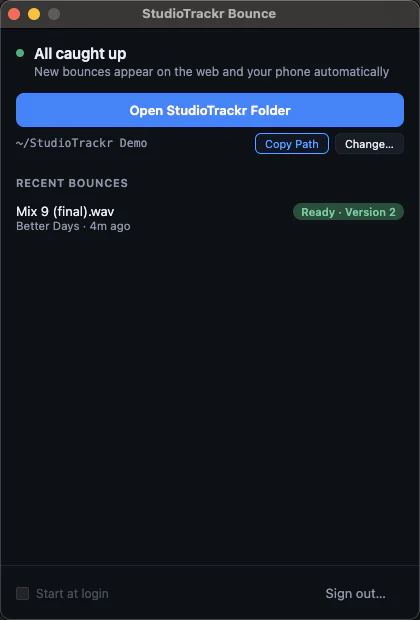
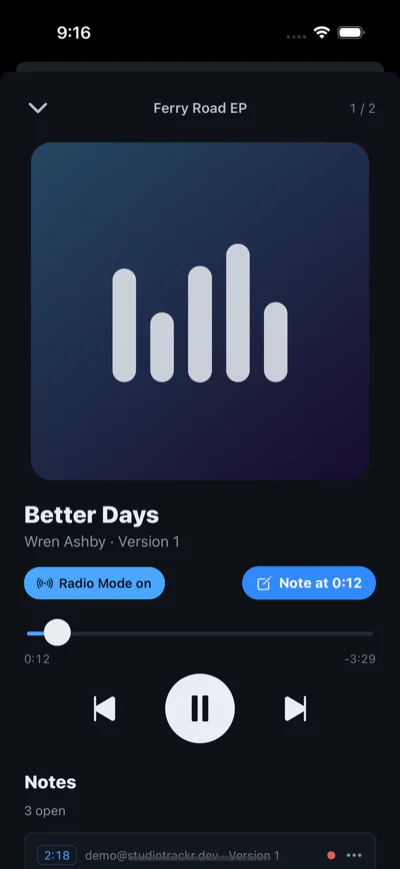
Both apps are free on every plan. Step-by-step for your DAW: Logic Pro, Ableton Live, Pro Tools, FL Studio, REAPER, Cubase, Fender Studio Pro and LUNA.